 LOGSORTIE
How to open LogSortie the first time
LogSortie is an independent app and doesn't carry Apple's paid signature, so the first time macOS asks you to confirm you want to open it. It takes three steps, and you only do it once. If you don't have it yet, download it here.
1. Install it
Open the LogSortie.dmg file you downloaded and drag LogSortie into the Applications folder.
2. The first time, macOS warns you
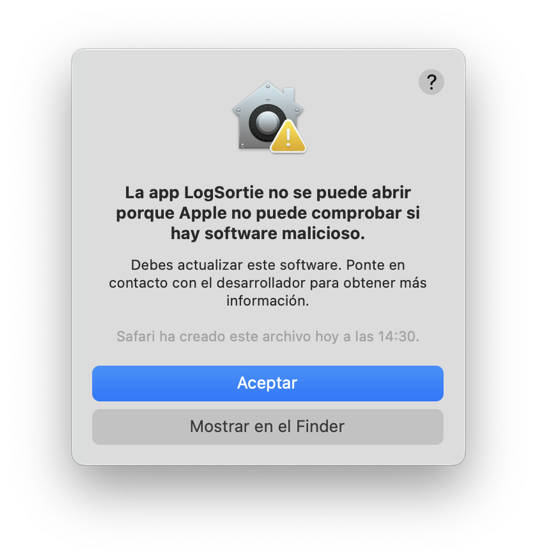
When you open it, macOS says it can't check the app. That's normal. Click OK.
3. Click Open Anyway
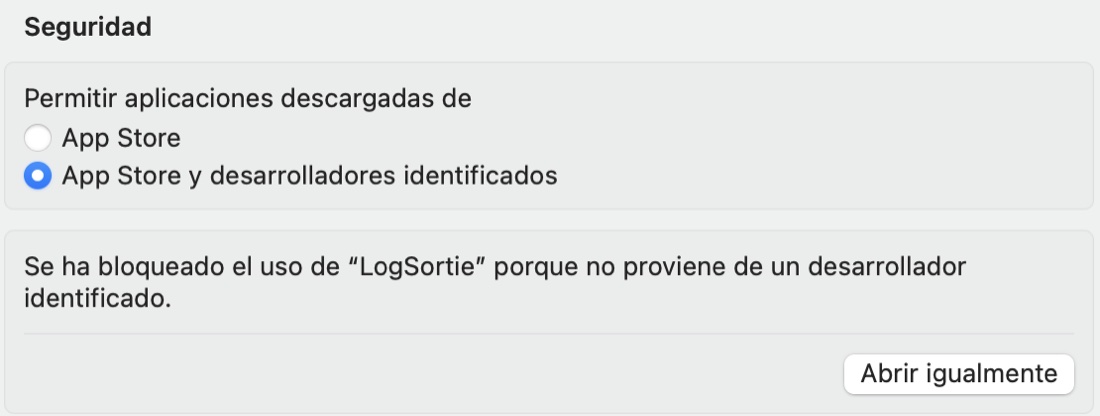
Go to System Settings, Privacy & Security, scroll down to Security and click Open Anyway. It will ask for your password or Touch ID.
4. Click Open
The warning shows up again, now with an Open button. Click it and you're done. You only do this the first time.
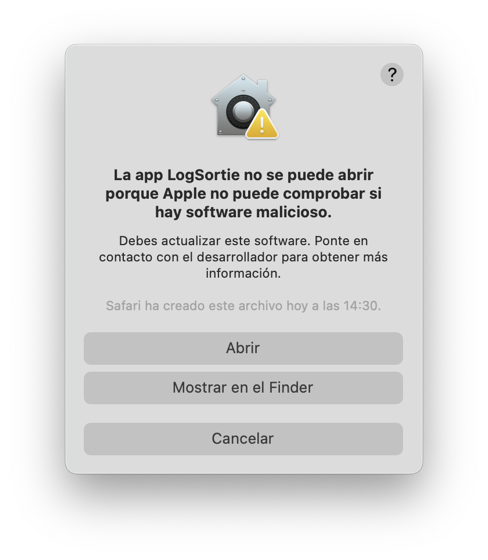
These screenshots are from macOS 14 in Spanish. On other versions and languages the wording changes a little, but the steps are the same. On macOS 14 and earlier you can also right-click the app and choose Open; from macOS 15 on, only Open Anyway works.
After that
Your first 30 clips are free. If it works for you, a license is $7.99, one-time, for 2 Macs: buy LogSortie. You get a key by email and paste it into the same app.
Something not working? Email me at [email protected].